

[!NOTE] Not connected yet? Connect ADSMCP in your client first — Claude Cowork, ChatGPT, Claude Code, Codex Desktop — then come back here. A project is where the connection lives; it is not a substitute for it.
Set it up in your client
Pick your client and follow the numbered steps. Each one puts the same five things in place: one project per ad platform, agent instructions, agent context, scheduled tasks, and agent skills. What each part is for is explained further down. For the folder-based clients (Claude Code Desktop, Claude Code Terminal, Codex Desktop) the whole install is one move: download the kit.zip from Expert Space, attach it to a chat, and send the
install prompt. The agent unzips it, puts the skill where it loads skills from, checks that ADSMCP
is connected, and updates its own instructions and memory so every future session knows the expert
exists. You never copy a file by hand.
Claude Cowork
Cowork has a dedicated field for every one of the five parts. Requires Claude Max, Team, or
Enterprise, and the ADSMCP plugin added from Customize → Plugins (Anthropic Directory)
(setup).
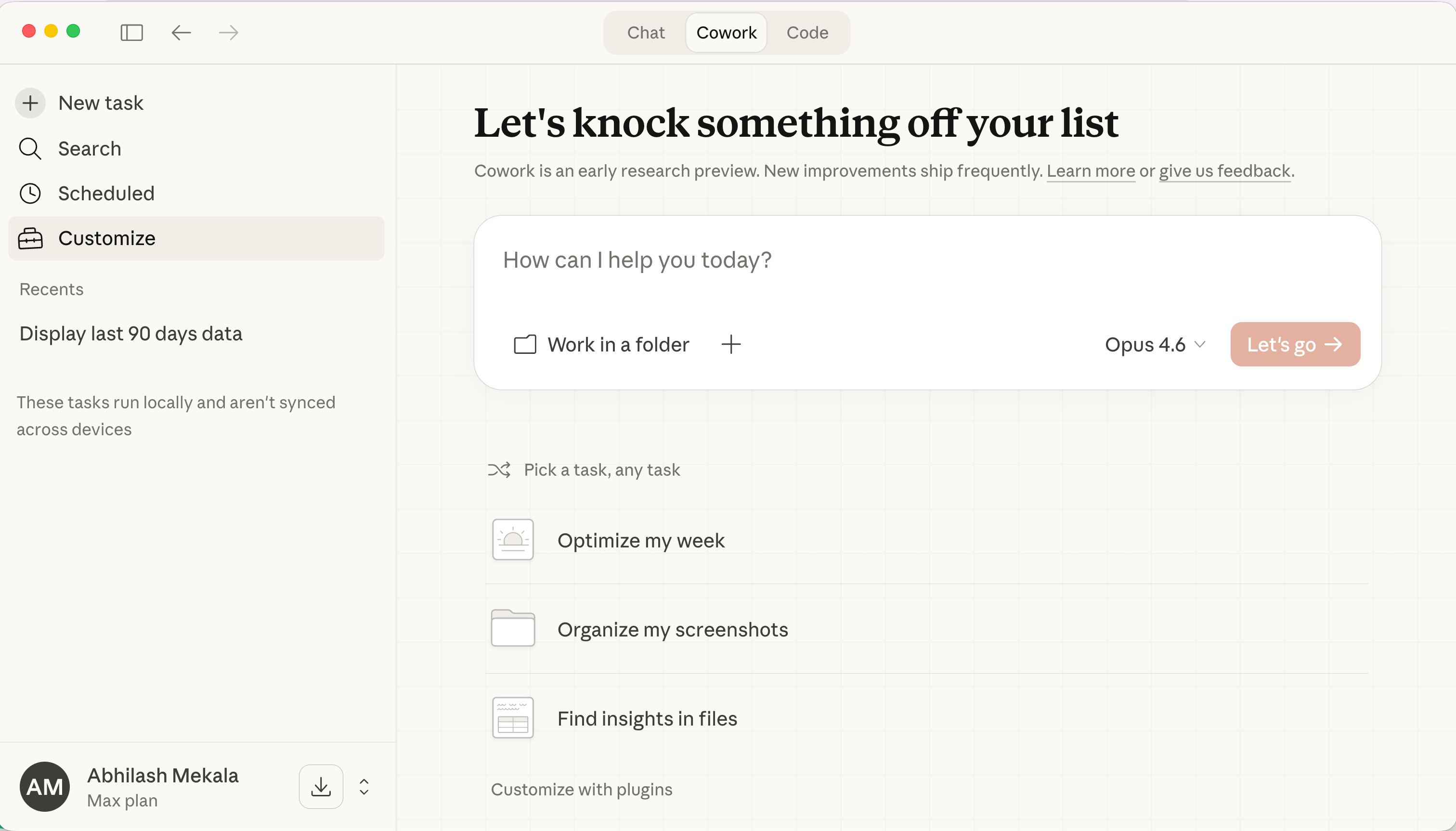
1. Open Cowork
In the Claude desktop app (or claude.ai), click the Cowork tab at the top.
AGENTS.md (the kit page’s Copy instructions button puts it on your
clipboard). Every task and every scheduled run in the project inherits them.
4. Add context to the Context folder
Drop your business docs, exemplars, P&L summary, marketing docs, past-test log, and the
kit’s references/account-profile.md into the project’s Context folder. Run /setup
once and the plugin scans the folder, pulls live campaign data, and writes a brand context
file alongside them. Leave Memory on.
5. Upload the skill
Click Customize in the left sidebar, open Skills, and upload the kit .zip as-is.
It sits next to the skills the ADSMCP plugin installed: those cover advertising in
general, this one covers your account.
6. Confirm ADSMCP and a notification channel
In Customize → Connectors, confirm ADSMCP Ads & Performance Marketing Agent (the
Anthropic-verified connector the plugin installs) shows connected, and link
the ad accounts for this platform only. Set Interactive and Read-only tools to Always
allow and leave Write/delete on Needs approval. Add Slack or email so scheduled runs
can report.
7. Schedule the routines
In a chat inside the project, ask for the routine and Cowork offers to schedule it with
/schedule. It appears in the Scheduled panel and runs remotely, laptop closed or not.
Start with the weekly dashboard, read-only.
The full Cowork build, including the seven-property safety model for self-optimizing tasks, is
in Cowork for Ad Ops.
ChatGPT
Projects, files, plugins, and skills all live in ChatGPT’s Work mode. Connect the ADSMCP
app first (setup); Projects are on Plus, Pro, Business, and Enterprise.
1. Switch to Work
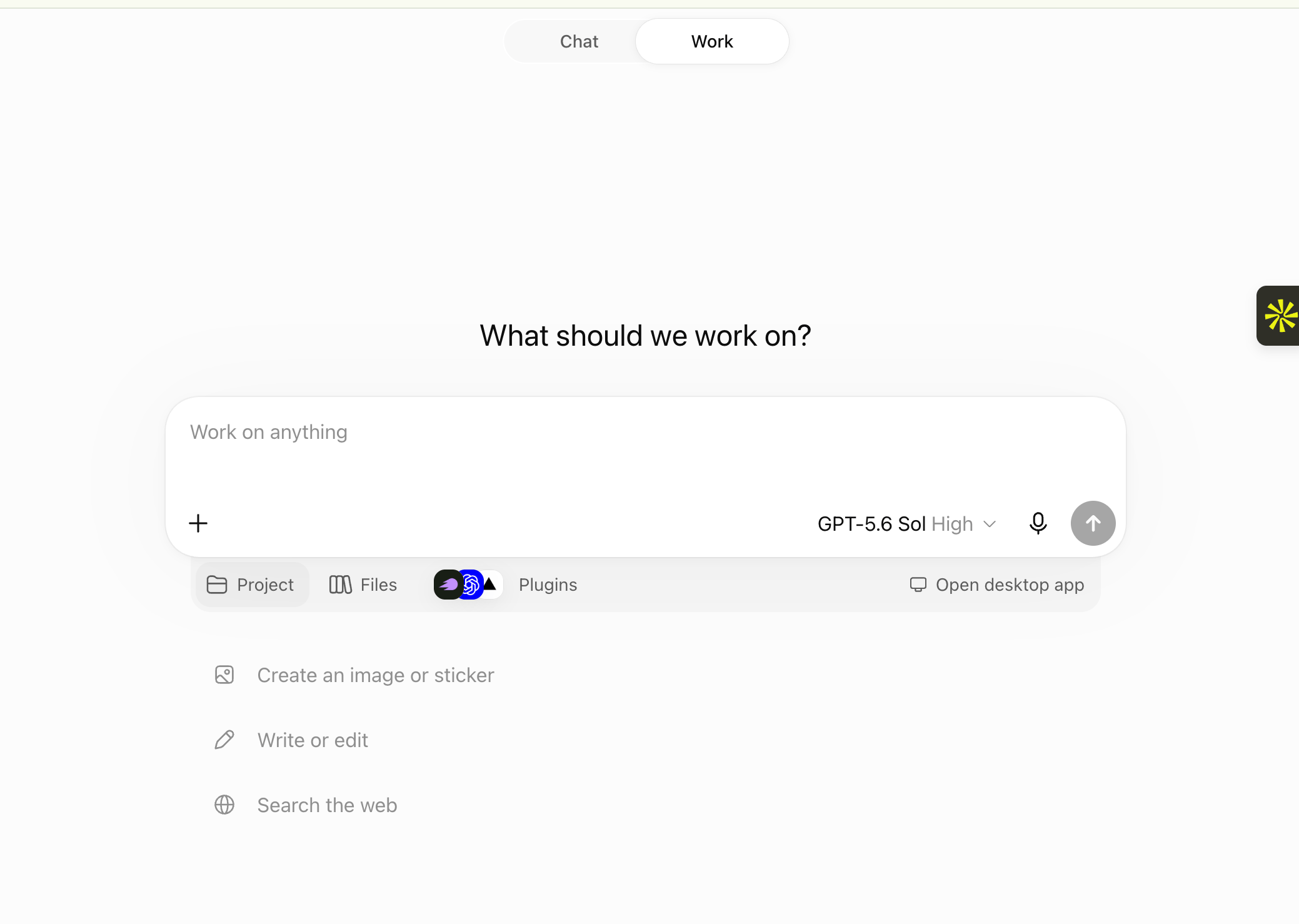
At the top of ChatGPT, flip the toggle from Chat to Work. The composer gains three
chips underneath it: Project, Files, and Plugins. Everything below happens here.
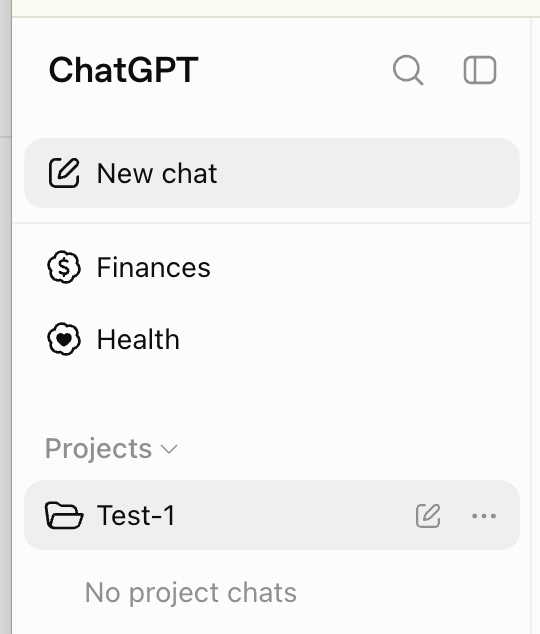
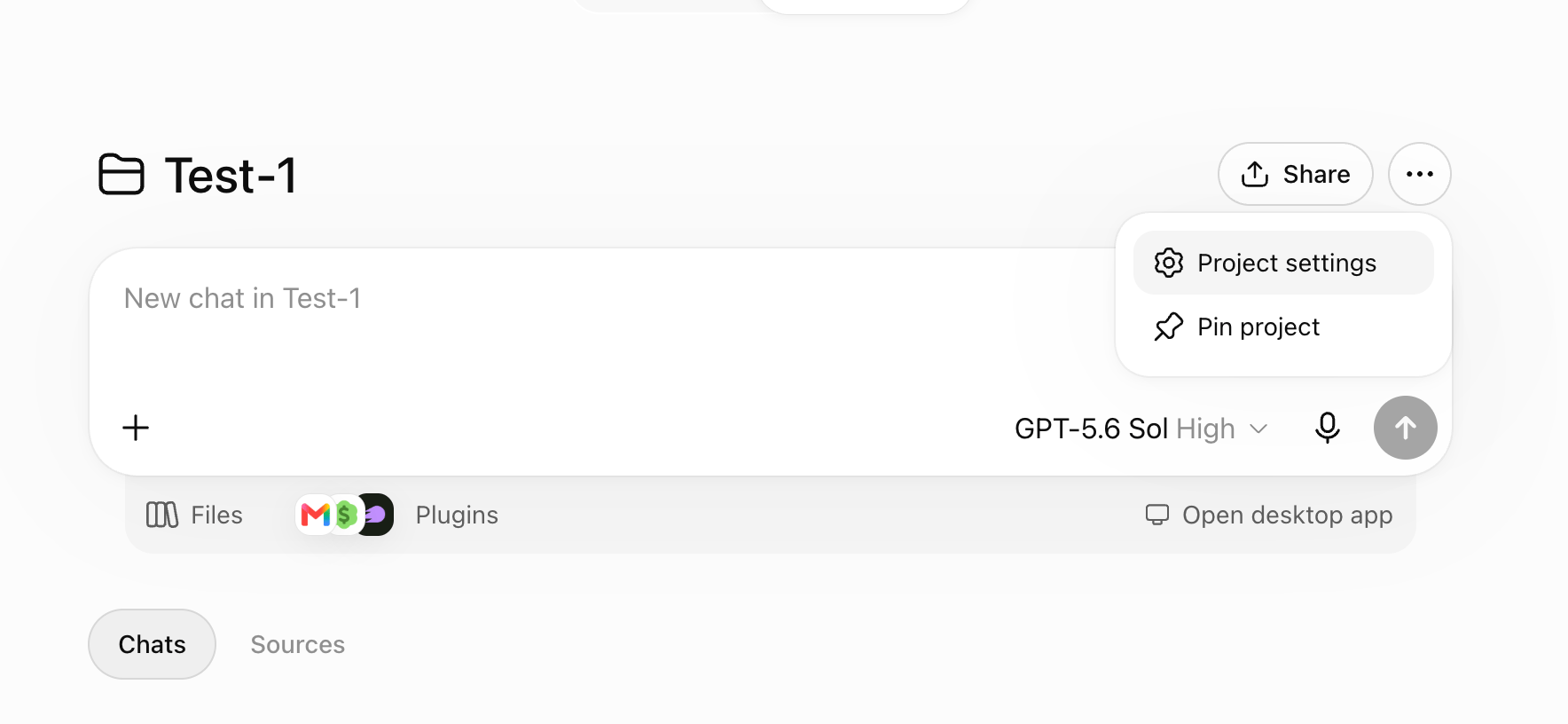
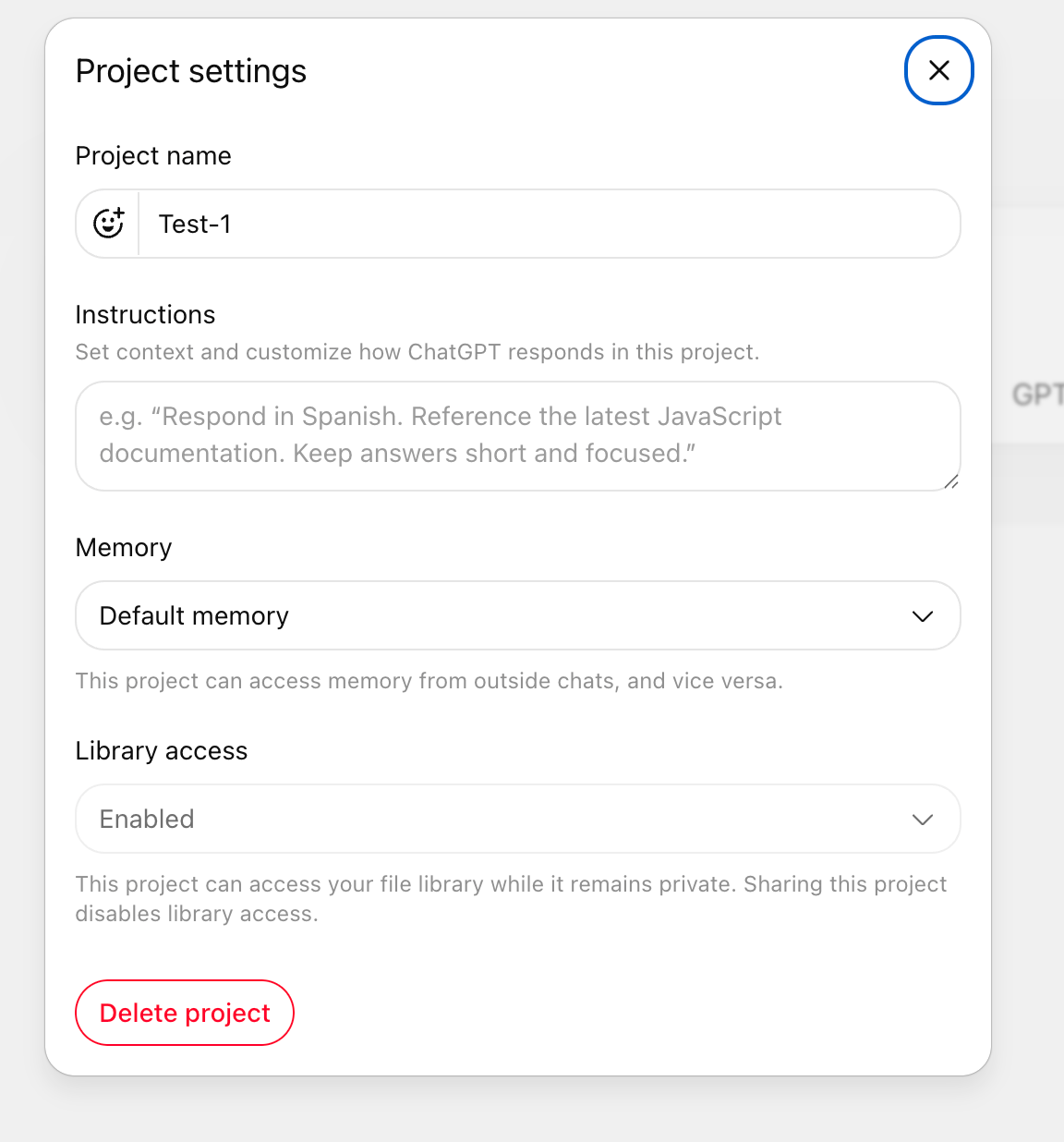
references/account-profile.md and PROMPTBOOK.md.
Keep them short; ChatGPT reads them on demand.
6. Turn on ADSMCP under Plugins
Click the Plugins chip and make sure your ADSMCP custom MCP server is on for this
project. It appears under the name you gave it, e.g. ADSMCP-Custom.
7. Upload the skill
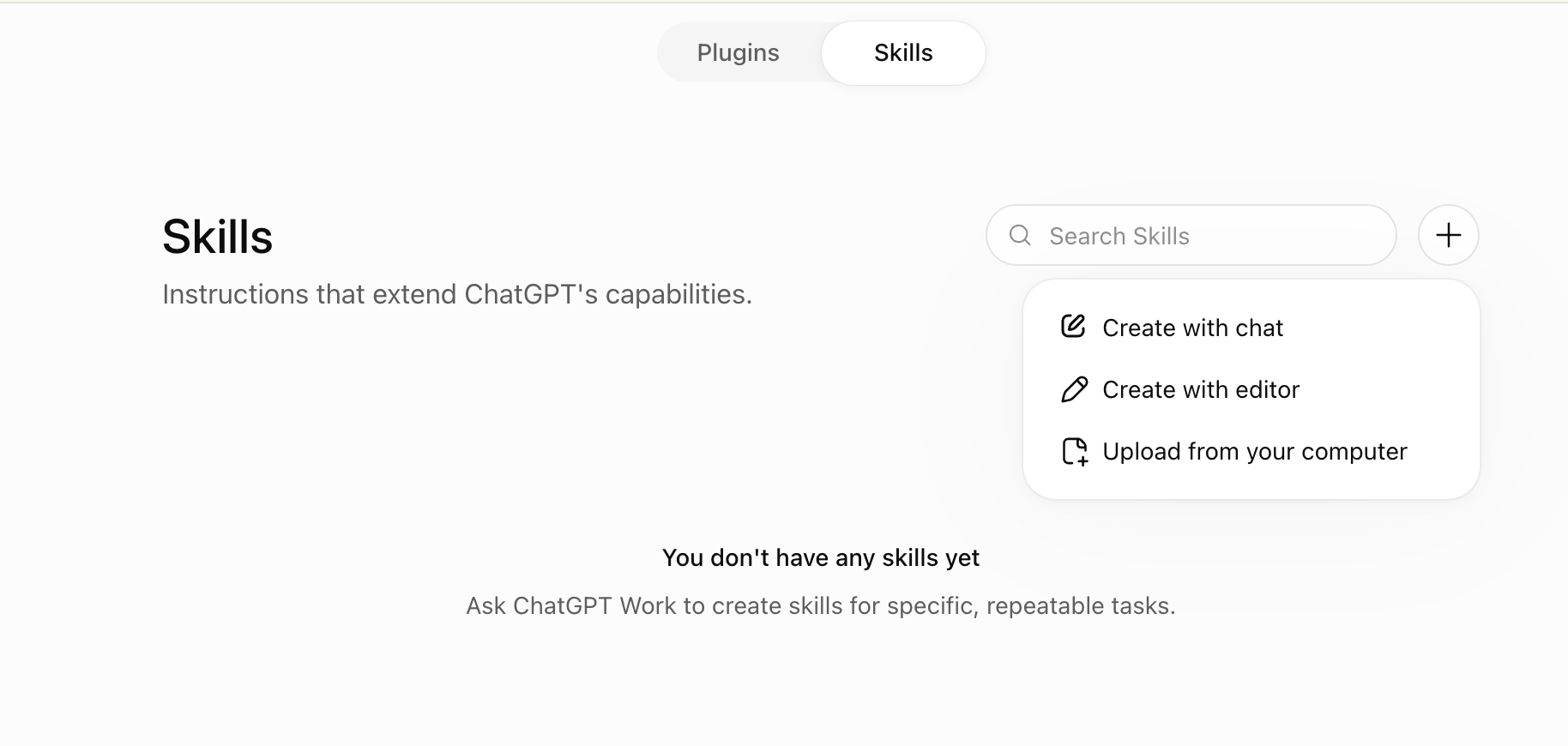
Open the Plugins page, switch the toggle at the top to Skills, click +, and
choose Upload from your computer. Pick the kit .zip. ChatGPT scans it and the skill
is available in every project.
[!NOTE] Connect ADSMCP as a custom MCP server, not the ADSMCP plugin from ChatGPT’s directory. The plugin is having issues right now and has no Amazon Ads, ChatGPT Ads, or Google Analytics tools.Claude Code Desktop Claude Code’s desktop app works inside a folder. The folder is the project: instructions are
CLAUDE.md, context is the files beside it, skills live in .claude/skills/, and routines run
the folder on a schedule. Install the ADSMCP plugin first (setup).
1. Download the kit
Go to adsmcp.ai/expert-space, open the kit for this
account, and click Download kit (.zip). Don’t unzip it.
2. Open one folder per platform
Create a folder per platform, acme-google-ads/, acme-meta-ads/, and open it in
the Claude Code desktop app. Everything the agent knows about this platform lives in this
folder and nowhere else.
3. Attach the zip and send the install prompt
Drag the .zip into the composer (or click + and attach it), then send:
The install prompt. Claude Code unzips the kit, installs the skill, checks ADSMCP, and updates its own instructions and memory.
Here are the agent skills I want to install. Unzip this kit and install it for this project:
- Put the skill folder in .claude/skills/ and register the agent definition it ships in .claude/agents/.
- Keep AGENTS.md inside the skill folder; don’t overwrite anything at my project root.
- Make sure the ADSMCP connector (https://mcp.adsmcp.si/mcp) is set up and active. If it isn’t, install the adsmcp-ads-agent plugin and walk me through signing in.
- Update this project’s CLAUDE.md and your memory so every future session knows this expert exists, which ad account it covers, and to use it for any work on that account.
- Verify every file against the zip, then tell me what you installed and where.
CLAUDE.md. Skills are picked up without a restart.
4. Put context in the folder
Add a context/ subfolder with your business docs, exemplars, P&L summary, marketing docs,
and past-test log. Run /adsmcp:refresh-brand-context whenever the folder changes
materially. Files on disk persist, so this is your memory too.
5. Create remote routines
Ask Claude Code to run the dashboard every Monday. Choose a remote routine, which runs
on Anthropic’s infrastructure with your laptop closed, over a local task, which silently
skips if your machine is asleep.
Claude Code Terminal
Same folder, same files, same install prompt as the desktop app; the only difference is how
you hand over the zip. Install the ADSMCP plugin first (setup).
1. Download the kit
Go to adsmcp.ai/expert-space, open the kit for this
account, and click Download kit (.zip). Don’t unzip it.
2. Open the platform folder in Claude Code
.zip from Finder into the terminal window to paste its path, then send:
The install prompt. Replace the path with wherever the zip landed.
Here are the agent skills I want to install: ~/Downloads/google-ads-expert-acme.zip. Unzip it and install it for this project:
- Put the skill folder in .claude/skills/ and register the agent definition it ships in .claude/agents/.
- Keep AGENTS.md inside the skill folder; don’t overwrite anything at my project root.
- Make sure the ADSMCP connector (https://mcp.adsmcp.si/mcp) is set up and active. If it isn’t, install the adsmcp-ads-agent plugin and walk me through signing in.
- Update this project’s CLAUDE.md and your memory so every future session knows this expert exists, which ad account it covers, and to use it for any work on that account.
- Verify every file against the zip, then tell me what you installed and where.
/skills, or invoke the expert directly as /google-ads-expert-<brand>.
4. Put context in the folder
Add a context/ subfolder with your business docs, exemplars, P&L summary, marketing docs,
and past-test log, then run /adsmcp:refresh-brand-context.
5. Create remote routines
Ask for the weekly dashboard as a remote routine. A local task only runs while the
machine is awake.
Codex Desktop
Codex inside the ChatGPT desktop app works the same way: a folder is the project, and you hand
Codex the zip. Install the ADSMCP plugin with three chat messages first
(setup).
1. Download the kit
Go to adsmcp.ai/expert-space, open the kit for this
account, and click Download kit (.zip). Don’t unzip it.
2. Open one folder per platform
Switch to Codex in the top-left dropdown, click New chat, and when Codex asks where
to work, pick or create a folder for this platform: acme-google-ads/. Keep other
platforms in their own folders.
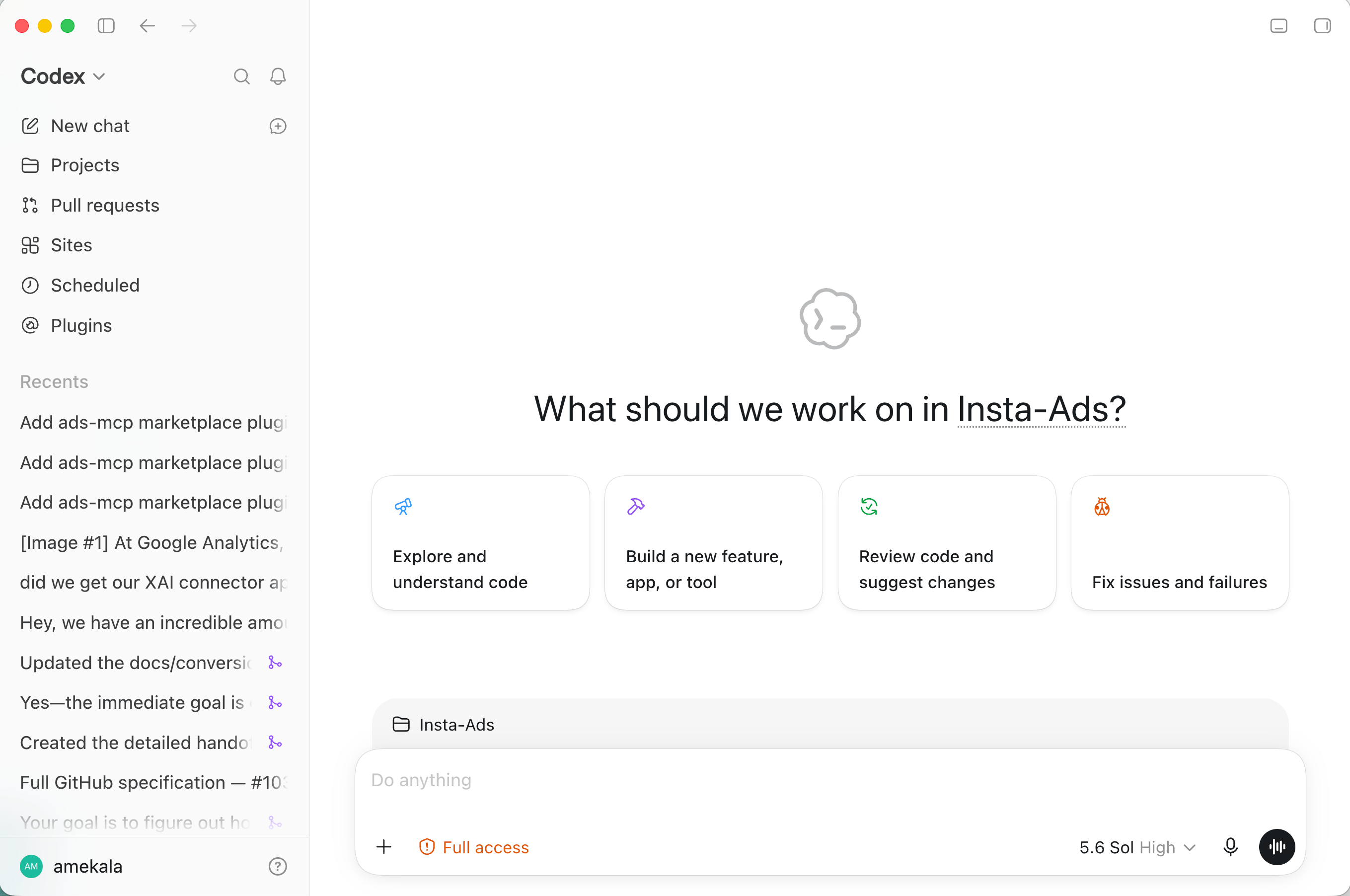
.zip in), then send:
The install prompt. Codex unzips the kit, installs the skill and agent, checks ADSMCP, and updates AGENTS.md.
Here are the agent skills I want to install. Unzip this kit and install it for this project:
- Put the skill folder in .agents/skills/ and register the agent definition it ships in .codex/agents/.
- Keep the kit’s AGENTS.md inside the skill folder; don’t replace the AGENTS.md at my project root.
- Make sure the ADSMCP connector (https://mcp.adsmcp.si/mcp) is set up and active. If it isn’t, install the adsmcp-ads-agent plugin and walk me through signing in.
- Update this project’s AGENTS.md (append, don’t replace) and your memory so every future session knows this expert exists, which ad account it covers, and to use it for any work on that account.
- Verify every file against the zip, then tell me what you installed and where.
[!NOTE]
Using Claude chat projects on claude.ai rather than Cowork? The pattern is identical: Set
project instructions, upload context under project knowledge, upload the kit .zip under
Customize → Skills. The playbook page
walks through it.
What goes in a project
A well-built project has five parts. Get all five in place and the agent stops being a clever chatbot and starts behaving like a media buyer who has been on the account for a year.[!TIP] Don’t want to write any of this yourself? The agent playbook from Expert Space is generated from your real ad account and ships every one of these parts as a file you upload into the right place. The rest of this page explains what each part is for, so you know where the files go and why.
1. One project per ad platform
Create one project for each ad platform you run. Google Ads gets a project. Meta gets a project. TikTok, LinkedIn, and Amazon each get a project. Which AI client you use doesn’t change this; it is the same rule in Claude Cowork, ChatGPT, Claude Code, and Codex. Why the boundary matters:- Each platform has its own rules. Google budgets are in dollars, Meta’s are in the ad account’s currency, TikTok rejects invalid objective and pixel combinations instead of correcting them. An agent scoped to one platform learns one rulebook and applies it correctly.
- Account IDs never cross. The single worst ad-ops mistake is a change landing in the wrong account. A project pinned to one platform, with its account IDs written into the instructions, makes that structurally impossible.
- Context stays relevant. Your Meta exemplars are noise in a Google Search project. Splitting by platform keeps every file in the project useful to every task.
- Automation stays safe. Scheduled tasks inherit the project. One project per platform means one writer per portfolio, so two routines can never fight over the same campaigns.
2. Agent instructions
Instructions are the agent’s constitution: read on every task, always on. They are the difference between an assistant that asks “which account?” every session and one that already knows. Write them in five short sections:
Then set the agent’s default mode to how you actually work:
- Builder — you hand it approved briefs and want campaigns built, verified, and monitored. Copy stays locked; it validates and reports, never rewrites.
- Advisor — you want the portfolio truth and a recommendation. It analyzes and proposes, builds only when asked, and every budget call stays yours.
Copy-paste: starter agent instructionsThe rule that keeps instructions useful: rules go in instructions, data goes in context. Don’t paste your brand guide into the instructions field. Don’t put “never launch” in a document the agent might skip. Procedures and non-negotiables live here; everything the agent should read lives in the next part. For the full always-on version, with the standard operating loop and the interactive-versus-scheduled monitoring split, see Cowork for Ad Ops.
3. Agent context
Context is the data that makes the agent sharp. An agent with instructions but no context knows the rules and nothing about you. Give it what you’d give a senior hire in their first week.
Keep the files short and current. A two-page brand summary beats a forty-page deck. Date anything
that goes stale, and tell the agent in its instructions that live account data wins over any file.
[!TIP]
A brand folder is the fastest way to give context. Claude Cowork, Claude Code, and Codex
all work inside a folder on your computer. Put the documents above in it and the agent reads
them; run /setup (Cowork, Claude Code) or ask Codex to set up the workspace, and the ADSMCP
plugin scans the folder, pulls live campaign data, and writes a context file for you.
Leave memory on where your client offers it. Project memory lets the agent carry naming
decisions, prior builds, and your preferences across sessions, and it is scoped to the project so
one platform’s memories never leak into another’s.
4. Scheduled tasks and routines
A project pays for itself when the agent runs without you. The same instructions, context, and skills, on a cadence, reporting to a channel you watch. This is what the agent can do automatically:
Start every routine read-only. Let it propose for a few weeks, check its proposals against what
you’d have done, and only then let it apply small, reversible changes with a per-run cap. A routine
that changes budgets with nobody watching spends real money; the
safety model for unattended changes
covers shadow mode, change caps, single writer, and the kill switch.
What each client calls it:
[!WARNING] A Claude Code local routine only runs while the desktop app is open and your computer is awake. For anything that matters, pacing, spend spikes, disapprovals, create a remote routine instead. Cowork and ChatGPT scheduled tasks don’t have this problem.A weekly dashboard routine. Paste it as a scheduled task in any client. Every Monday at 8am, build my Google Ads dashboard for last week: spend, conversions, CPA, and ROAS per campaign, week-over-week change, and month-to-date pacing against budget. Lead with the three things worth my attention. Read-only: propose changes, don’t make any. If it runs late in the day, summarize what changed instead of starting fresh. A small-changes routine with hard caps. Only after weeks of read-only runs. Every Wednesday at 7am, review last 7 days of search terms across active campaigns. Add negatives for terms with 20+ clicks and zero conversions. Shift up to 10% of daily budget from campaigns above target CPA to campaigns below it, never more than $50 per campaign per run. Never pause a campaign, never touch bid strategy. Report every change you made and every change you chose not to make. Every scheduled run calls ADSMCP tools again, so it draws on your monthly tool-call quota like a live conversation. Weekly is the right default for a review; daily is for accounts spending enough to justify it. The scheduled tasks guide has more example prompts and the late-run guardrails that keep a routine honest.
5. Agent skills
A skill is a step-by-step playbook for one job, loaded only when a task matches. Instructions say what the agent may do; a skill says exactly how to do it. That split is what lets you give the agent deep procedures without bloating every chat. ADSMCP ships 13 free skills with every plan: the safety contract, the tool-call contract, one skill per platform, and cross-platform workflows for launching, reviewing, optimizing, and writing creative. They install with the ADSMCP plugin in Cowork, Claude Code, and Codex, and ship inside the ChatGPT plugin. You never invoke them by name; describe the task and the agent picks the skill.
Skills sit in a different place from instructions in every client: the Skills panel in Cowork
and ChatGPT, a
.claude/skills/ folder in Claude Code, .agents/skills/ in Codex. Keep them
there. Don’t paste a skill into the instructions field, and don’t drop it into context as a
document. Reference skills by name from instructions and scheduled-task prompts when you want to
force one.
The free skills know advertising. They don’t know your account. The
agent playbook below adds a skill that does.
Full reference: Agent Skills.
Where each part lives, by client
Skip the blank page: buy an agent playbook
You don’t have to write any of this from scratch. ADSMCP generates an agent playbook for any ad account you’ve connected, built from that account’s real campaigns, spend history, and current state. It ships as a download containing every part of the project above, ready to upload into the right place. 1. Open Expert Space Go to adsmcp.ai/expert-space. You’ll see one card per connected ad account, grouped by platform, which is also why the one-project-per-platform rule fits it: one playbook covers one account. 2. Preview, then buy Preview Expert shows sample prompts before you pay. Buy one account, or tick several and check out together. It’s a one-time purchase per account, and annual plans include one free; pricing and the bundle discount are on the playbook page. 3. Download the kit The build takes a few minutes. From the kit page, click Download kit (.zip), or hit Copy instructions to put the agent instructions straight on your clipboard. Unzip it and you get one folder, named likegoogle-ads-expert-<brand>/.
4. Upload each file into its part of the project
The kit is laid out to match this page. Use the table below.
What’s in the download, and where it goes:
[!TIP] The playbook follows the rule this page is built on without you thinking about it:The full install steps for every client, what each build stage does, and the FAQ are on the Prompt Engineering Playbook page.AGENTS.mdis rules,account-profile.mdis data,SKILL.mdis procedure, and they arrive as separate files so they land in separate places. The dossier is a dated snapshot; the agent is told live account data always wins, and rebuilding the kit against fresh data is free and unlimited from Refresh on the kit page.
Checklist
Before you call the project done:- One project per ad platform, named so the platform is obvious, with only that platform’s accounts linked
- Instructions cover the business, the agent’s role, the north-star metric, the exact account IDs, and the golden rules
- Context holds your brand guide, exemplars, margin data, marketing docs, and what has and hasn’t worked
- ADSMCP connected inside the project, with a notification channel for scheduled runs
- Skills installed in the Skills panel or skills folder, not pasted into instructions
- At least one read-only routine running: the weekly dashboard
- Memory on
Where to go next
Scheduled tasks More routine prompts, late-run guardrails, and what a cadence costs in tool calls.
Cowork for Ad Ops The full always-on build and the safety model for routines that make changes.
Agent Skills The 13 free skills, what each enforces, and how to install them per client.
Prompt Engineering Playbook The agent playbook from Expert Space: instructions, dossier, skill, and prompt book generated from your account.
Managing multiple clients One project per client per platform, without letting automation collide.
Connect your AI client Cowork, ChatGPT, Claude Code, Codex Desktop, and every other client ADSMCP supports.